










 United States (English)
 Japan (日本語)
 Russia (русский)
 Germany (Deutsch)
 France (Français)
 Spain (Español)
 Italy (Italia)
 Portugal (Portugues)
 China (繁体中文)
 Turkish (Türk dili)
 Dutch (Nederlands)
 Korean(한국인)
 Saudi Arabia(عربي)
 Download high-quality movies & TV shows from Apple TV+.
Do you want to download Apple TV+ shows and movies to watch offline? This guide is for you! Here we will introduce different methods for downloading Apple TV+ shows and movies in MP4, so that you can watch Apple TV Plus videos on iPhone, iPad, Mac, MacBook, PC laptop or desktop.
Apple TV+ is undoubtedly the best streaming video app for Apple users. It allows users to stream original movies, shows, events and exclusive content across multiple platforms through the Apple TV app. After you’ve grasped its extensive content catalog, you might want to download Apple TV+ movies and shows for offline viewing. However, the official download function only works in official Apple TV App on iPhone, iPad and Mac. What if you are using a non-Apple device such as Android phone, or Windows laptop?
Therefore, downloading Apple TV+ shows and movies to MP4 can be a more flexible and helpful choice. In this article, we will introduce several methods to help you easily download and save videos from Apple TV+ to MP4. Thus, you can watch Apple TV+ shows, movies and original content on laptop or any other devices while on a road trip or a long airplane without an internet connection.

Way 1. Download Apple TV+ Shows and Movies with Apple TV App (iOS, Mac Only)
Apple TV+ lets you download videos with a subscription ($6.99 per month). If your device is not always connected to a stable network, the best solution is to download Apple TV+ videos for offline viewing. Currently, the Apple TV app is available on iPhone, iPad, Mac, Apple TV (3rd or above), Apple TV 4K, or Apple TV HD, some smart TVs and game consoles. Here’s how to download Apple TV+ movies and shows on Mac, iPhone, or an iPad. After that, you can enjoy Apple TV+ movies and shows even when you are offline!
1# Download Apple TV+ Shows and Movies on iPhone, iPad
Step 1. Open the Apple TV app on your iPhone or iPad, sign with your subscription account.
Step 2. Browse or search the show or movie you want to download, and open it.
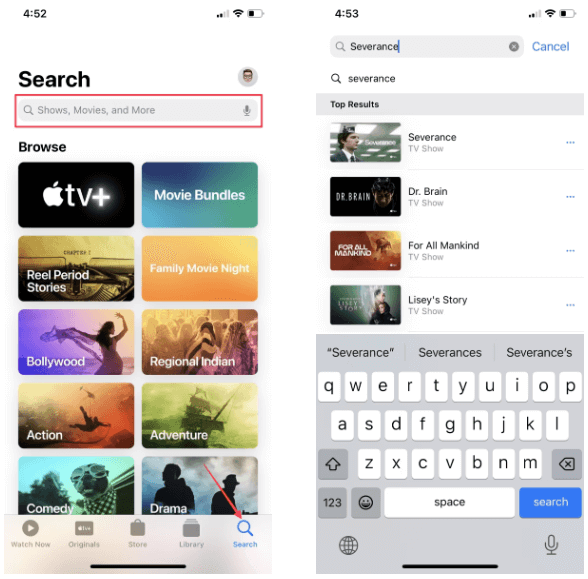
Step 3. Tap the three-dot button next to the TV show episode, or event, and select “Download“.
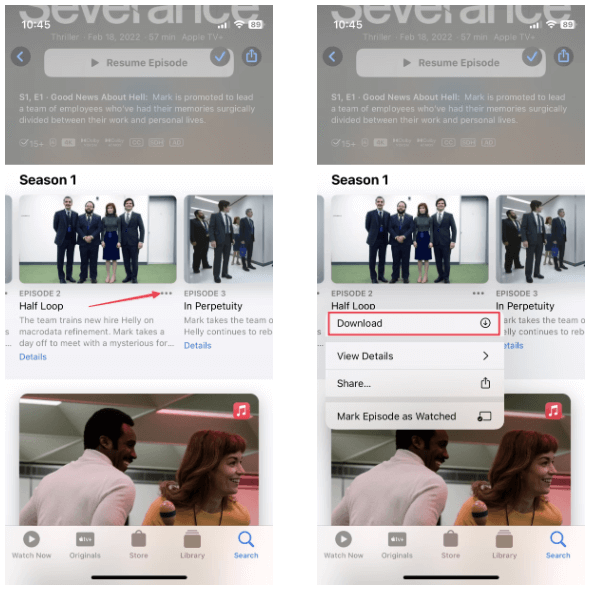
For movie, just tap the “Download” icon.

Step 4. When finished, tap “Library” at the bottom, and select “Downloaded“.
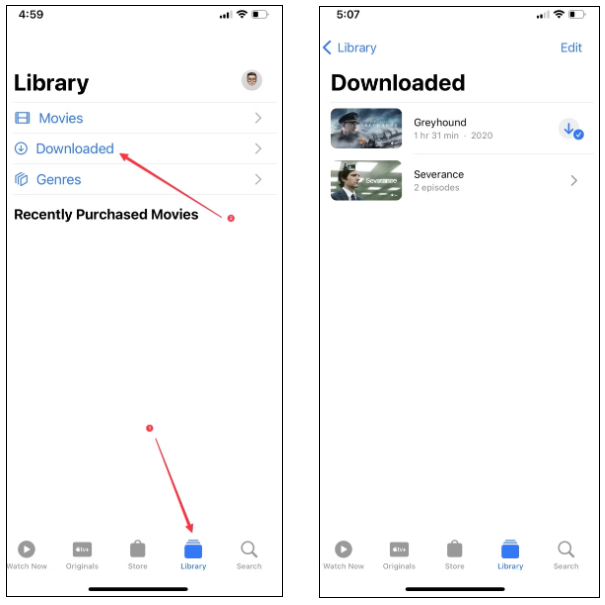
You’ll see a blue arrow next to the downloaded video. You can watch the downloaded movies and shows offline on Apple TV app.
2# Download Apple TV+ Shows and Movies on Mac
Step 1. Launch the Apple TV app on your Mac, log into your subscription account.
Step 2. Find the TV show, movie or event you want to download.
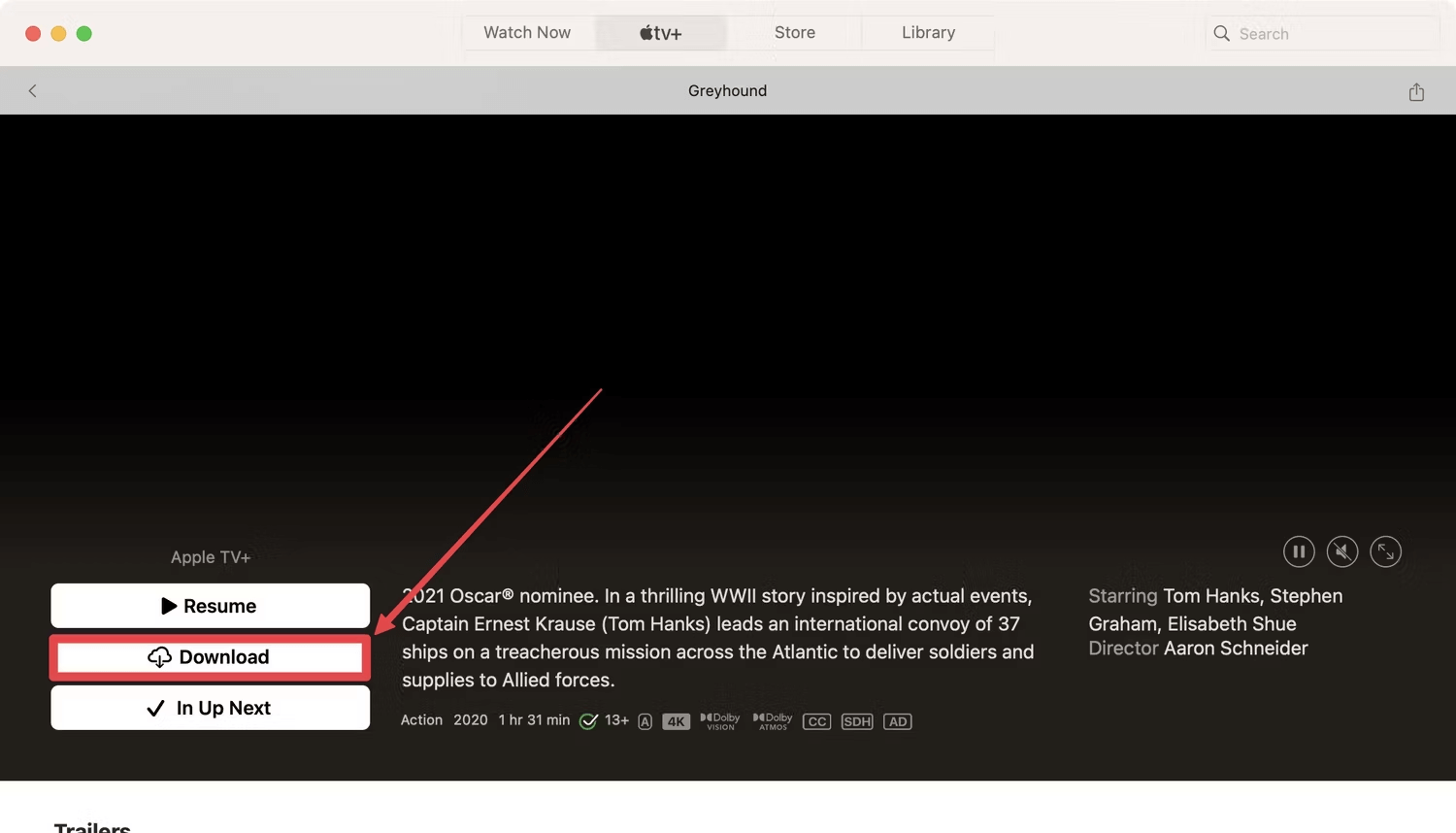
Step 3. Click the “Cloud Download” icon next to the TV show or movie.
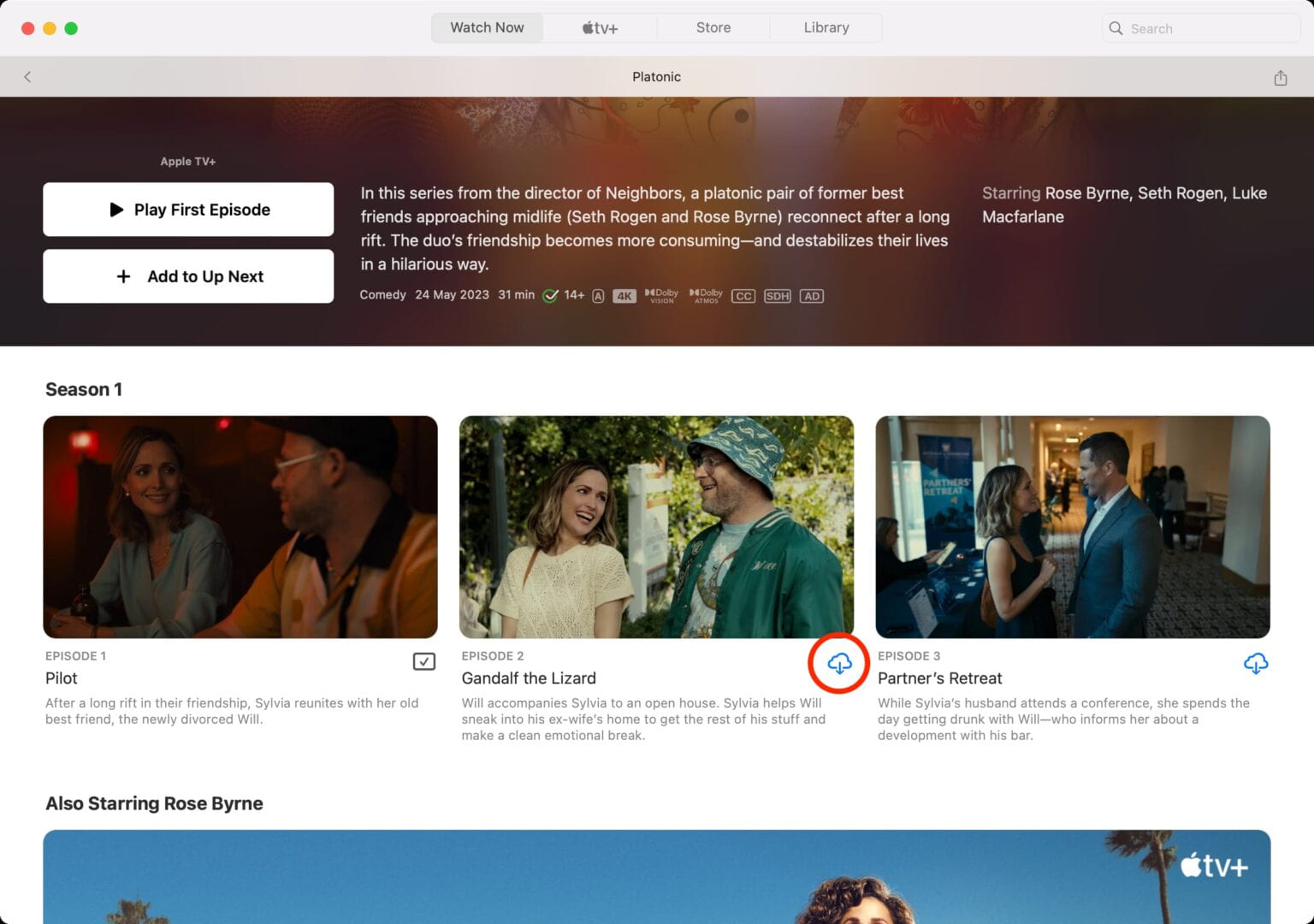
Step 4. Click “Download” button to download the movie or TV show on Apple TV.
Step 5. After the download is complete, tap “Library” at the top of sceen, then click “Downloaded” in the left panel.
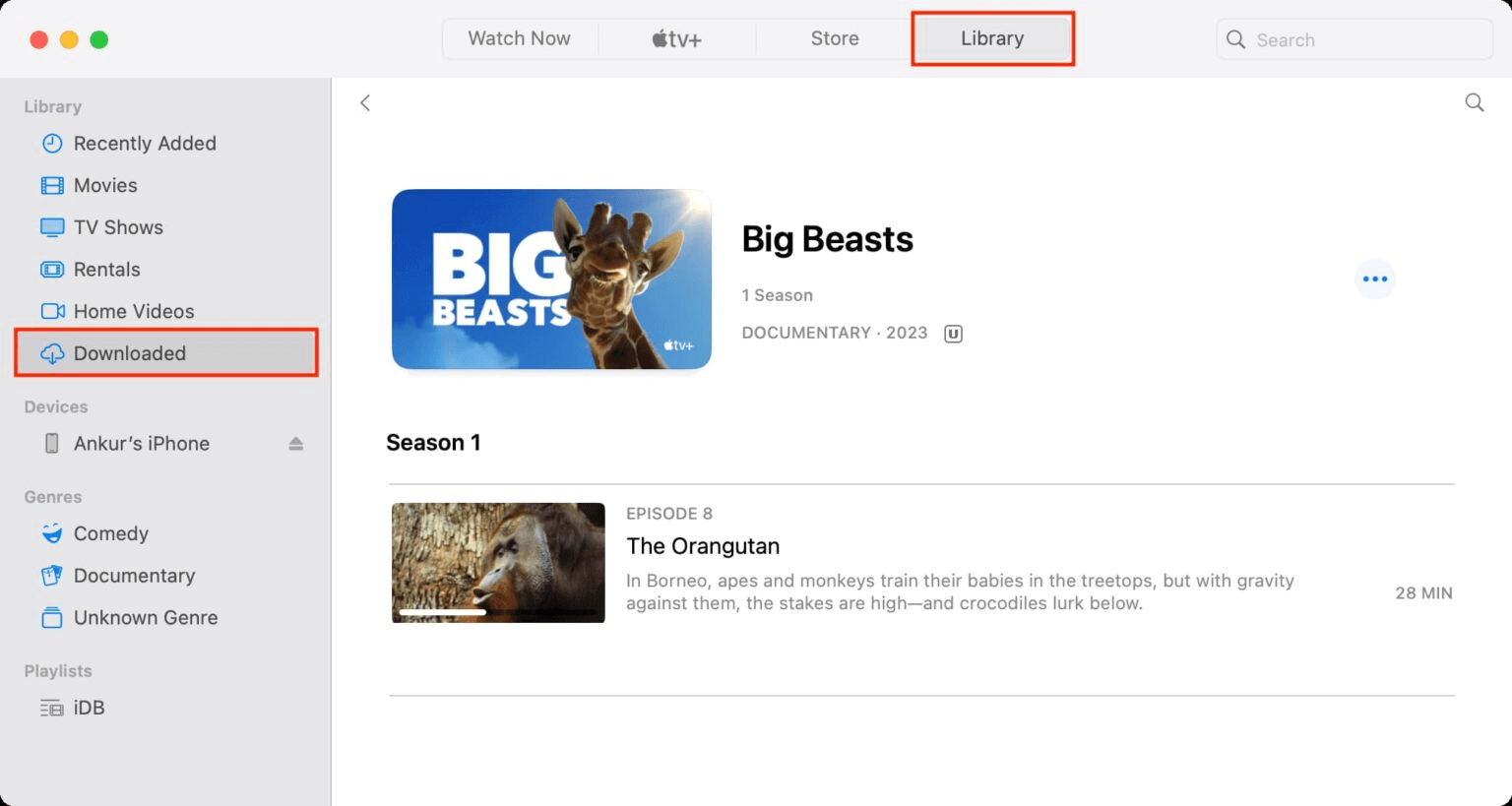
You can now watch Apple TV movies and TV shows offline on your Mac!
Note: All your downloads in the Apple TV App are just encrypted cache files. This means you will lose your downloads once Apple TV+ subscription ends. To keep your Apple TV+ downloads and watch them offline anywhere, you need to download Apple TV+ shows to MP4, or download Apple TV+ movies to MP4 files. Keep reading to learn more workable methods to get Apple TV+ in MP4 format.
Way 2. Download Apple TV+ Shows and Movies to MP4 with Third-Party Downloader
With an Apple TV Plus subscription, you can only download movies and shows from Apple TV+ on iOS and Mac. If you wish to play Apple TV Plus videos outside of the Apple TV app, or enjoy Apple TV+ movies and shows offline on more devices such Windows PC, Android, or other media players like VLC, Windows Media Player, you may download Apple TV+ movies and TV shows to MP4 using a professional Apple TV+ Video Downloader. Here we highly recommend TunesBank Apple TV+ Downloader.
Best Apple TV+ Video Downloader for Windows & Mac
TunesBank Apple TV+ Video Downloader is a dedicated Apple TV+ video downloader that enables you to download Apple TV+ movies and TV shows on Mac and Windows computer without Apple TV app. With a built-in search engine, it supports to use video keywords & URL to add videos. It is capable of downloading Apple TV+ movies and shows to MP4 or MKV in 720P/1080P, with up to 50X super faster speedy performance.
To enhance your viewing experience, it preserves multilingual subtitles and audio tracks. Apart from this, you can select the video codec, video quality, audio language, subtitle language and download speed according to your needs. Afterwards, you can watch Apple TV+ offline on Mac, Windows PC, or move them to your Android device, iOS, game consoles USB drive, and other devices for offline watching.
Highlight Features:
- Download movies & TV shows from Apple TV+ without Apple TV app.
- Download Apple TV+ movies and TV show to MP4/MKV.
- Download Apple TV+ shows and movies to Mac, Windows.
- Download Apple TV+ video in 720P and 1080P HD.
- No Apple TV Plus app needed, built-in web browser.
- Preserve audio tracks and subtitles in six languages.
- Fast downloading speed and batch download.
- Save Apple Original films and series permanently.
- Watch Apple TV+ offline and other devices anytime.
The following is the detailed guide to download movies and TV shows from Apple TV+ to MP4 with TunesBank Apple TV+ Downloader.
How to Download Apple TV+ Shows and Movies on Mac/PC in MP4
Step 1. Run TunesBank Apple TV+ Video Downloader
Download, install and launch TunesBank Apple TV+ Video Downloader on your Mac or Windows. Choose Apple TV+ service, and log in your Apple ID to access Apple TV Plus content catalogue.
Tips: If you have a license version, click on the “Key” icon to registration code. If not, please continue using the free trial.
Step 2. Add Apple TV+ Movies/TV Shows
TunesBank Apple TV+ Video Downloader provides users with three flexible ways to add content from Apple TV+ for downloading.
Way 1. Browse Online: The first method is to browse Apple TV+ directly inside TunesBank. Once you logged in to your account, you can freely browse categories, view featured collections, or scroll through recommendations just like you would on the official Apple TV+ platform.
Select and open the movie or show you like, and click the “+” icon to add it to the download queue. You may also click the “Gear” icon next to the title for more settings, and hit on “Download” icon to save it online directly!
Way 2. Search by Name: If you already know the title of the movie or series you want, turn to “Search” mode, simply type the movie or episode name into the search bar.
Way 3. Use URL: Or go to Apple TV app or website, copy the link of the movie/TV show, and paste it to TunesBank’s search field, then hit on “Search” icon.
Step 3. Customize the output settings
After selection, click on the “Menu” icon at the upper right corner to customize the output settings. From where, you can select the video format (MP4/MKV), video codec (H264, H265), and output folder, download speed, audio language and subtitles language, etc.
To play Apple TV+ offline on any device, pick MP4 format.
Step 4. Start Downloading Apple TV+ Movies and TV Shows in MP4
Click on the “Download” icon next to the movie, then TunesBank tool will begin to download movies from Apple TV+ to MP4 files with HD resolution.
For TV show, click the “Download” icon next to it, and select the episodes you want to download. You may also select specific audio tracks and subtitles for downloading. Then press on “Download” button.
Step 5. Find Downloaded Apple TV+ Movies and TV Shows
When the download is finished, go to “History” section to find your well downloaded movies and TV shows.
You can click the blue folder icon to locate it, and open the videos using other players!
Way 3. Record Apple TV+ Shows and Movies as MP4 Using Screen Recorder
Another common solution is to record videos when playing movies or shows from your computer. Many third-party streaming video recorders can meet the demands, for example, UkeySoft Screen Recorder is a good option. This tool supports both Windows and Mac computers.
Using UkeySoft Screen Recorder to record Apple TV+ Shows and Movies to MP4 is quite easy, and you can bypass the DRM protection and enjoy its built-in editing feature after the recording. Even better, it lets you save Apple TV+ video content with HD quality to enhance your viewing experience. But it’s obvious, you can only record one video at a time, which is more time-consuming than the efficient TunesBank Apple TV+ Downloader. But it is also intelligent, you can create a task for auto record/stop/split. With it, you can save any content from Apple TV Plus or other sites to your computer, and enjoy them offline anytime!
Here we use its Windows version to show the detailed steps.
Step 1. Download UkeySoft Screen Recorder
Free download UkeySoft Screen Recorder and install it on your Mac or Windows PC computer.
Step 2. Open UkeySoft Screen Recorder
Start the program and click “Screen Recorder” function.
To begin with, navigate to the video on Apple TV Plus website that you wish to save.
Then click the arrow and select “Record Screen” mode on UkeySoft program.
Step 3. Choose Recording Mode
UkeySoft can flexibly capture full screen or custom area from your computer.
Step 4. Set Input Audio
To get original Apple TV content, choose “Computer sounds” as the input audio.
Step 5. Select MP4 Format
Click “Settings” to open the settings window. Tap “Video” and choose MP4 format. Here you can also adjust the video quality, audio, bitrate and more.
Step 6. Start Recording on Apple TV Plus
Now you can drag the mouse to select the recording area, then click “Play” button.
Meanwhile, click the red “REC” button on UkeySoft to begin recording.
Step 7. End the Recording of Apple TV Video
When done, click the “End” or “Pause” button to end the recording.
FAQs About Downloading Apple TV+ Movies and Shows
Can I download Apple TV shows to watch offline?
Answer: Generally, the paid subscribers can download TV shows and movies from Apple TV Plus for offline viewing. But the official download function is only available on Apple TV app for iOS and Mac computers.
To download Apple TV shows to watch offline on Windows, Android or other devices, you need to use a tool like TunesBank Apple TV+ Video Downloader to download Apple TV shows as MP4 files.
Why are downloaded Apple TV+ shows so huge in file size?
Answer: There are several factors, such as video length, video quality, audio quality, and file format. When you choose the highest resolution to save your Apple TV+ downloads, it will take up more storage space. To free up space, you can delete some watched Apple TV+ shows, or try to clear cache in the Apple TV app.
Can I put downloaded movies from Apple TV+ to external storage.
Answer: Generally, you can only download movies in Apple TV+ App for iOS and Mac. The downloaded movies are DRM-protected, and you can’t take them outside the Apple TV+ App. Hence, you need to use a third-party Apple TV Plus downloader to download Apple TV+ movies to MP4 on your computer, so that you can move them to external drive.
Conclusion
Just like other streaming video services, Apple TV Plus’s download feature also comes with certain restrictions. It would be better if you use a third-party downloader like TunesBank Apple TV+ Downloader to download Apple TV+ movies and shows to MP4. It can help you download and save any Apple TV+ videos to permanent local MP4/MKV files in high 720p resolution. Thus, you can transfer and enjoy your favorite Apple TV+ videos offline on your iPhone, iPad, Android, PC, Mac, laptop, game console, smart TVs, etc.
The Latest Articles
– Download Apple TV+ Shows on Laptop
– Download Apple TV+ Shows on Mac
– How to Watch Free Movies on Apple TV+
– How to Watch Apple TV+ on Computer
– 7 Best Apple TV Plus Video Downloaders Review
– Watch Apple TV+ Videos Offline on Any Device
– What Is the Difference Between Apple TV, Apple TV+, and Apple TV App?
– Top 8 Solutions to Download Streaming Video
– Top 10 Free Movie Download Sites Recommended
– 3 Ways to Download Movies to Watch Offline
– 2 Verified Methods to Download X/Twitter Videos to MP4
– Download Twitter(X) Videos on PC, Mac and Mobile Phone
– Download Facebook Videos on PC, Mac and Mobile Phone
– 3 Ways to Download Facebook Video to MP4

Apple TV+ Video Downloader
A professional Apple TV+ video downloader. Download Apple TV+ videos to watch offline with ease! Make your Apple TV+ shows/movies downloads never expire.


